Recently upgraded the GPU workstation
From 2017 assembled a TITAN Xp four‑GPU workstation that has been used for over 4 years, I recently performed some upgrades:
- GPU: AORUS GeForce RTX 4090 Xtreme Waterforce 24G
- CPU: AMD Ryzen Threadripper PRO 5975WX
- Motherboard: ASUS Pro WS WRX80E‑SAGE SE WIFI II
- Power supply: ROG Thor 1600W Titanium
- Cooling: upgraded from air cooling to KRAKEN Z73 RGB liquid cooling
- Case: ROG Genesis GR701 E‑ATX case
- Storage: WD BLACK SN850 4TB, Samsung 990 PRO 2TB, Lexar ARES 4TB, Hikvision C4000 4TB
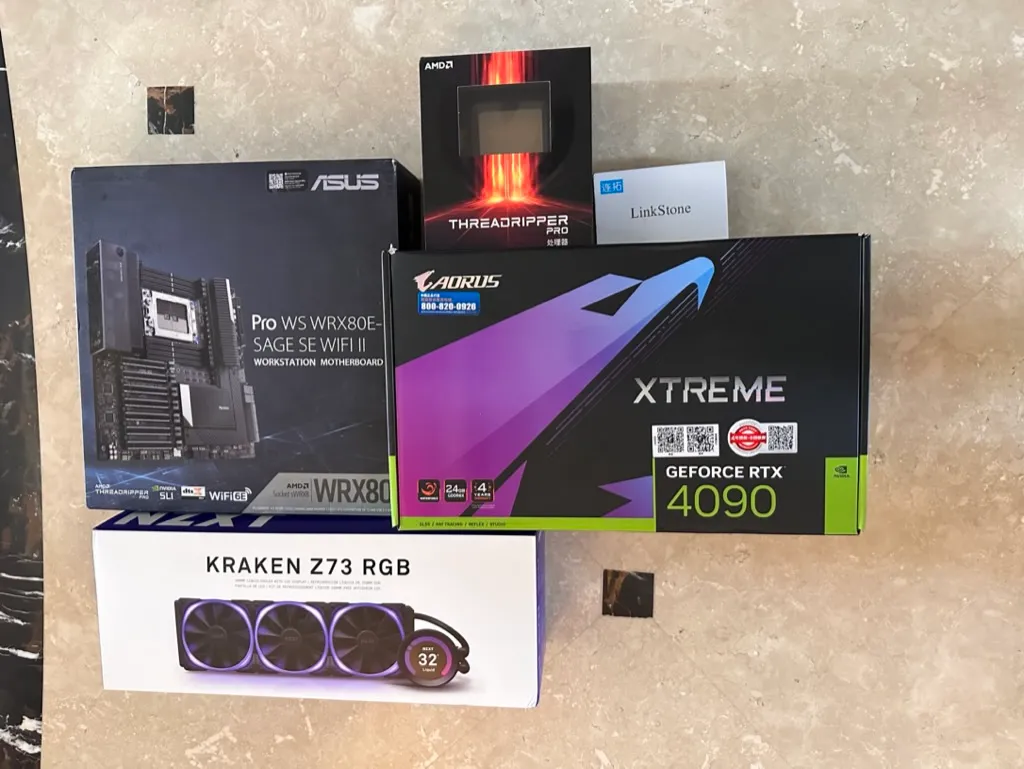
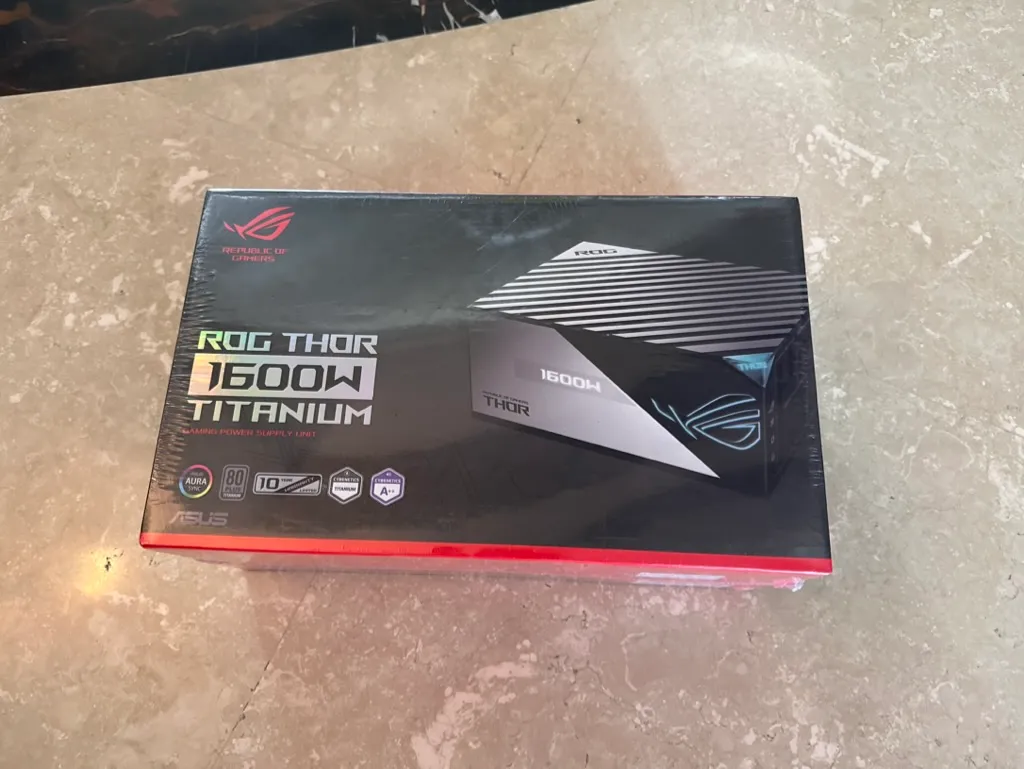
RTX 4090
The RTX 4090 is NVIDIA’s latest consumer‑grade flagship, built on the Ada Lovelace 4 nm process, featuring an AD102 chip with 16 384 CUDA cores, 512 Tensor cores and 128 RT cores, and 24 GB GDDR6X memory (384‑bit bus, 21 Gbps). FP32 and FP16 performance reaches 82.6 TFLOPS, unfortunately it does not support NVLink, and INT8 inference performance hits 661 TOPS. Although the standard power draw is 450 W, the AORUS Waterforce liquid‑cooled version cools well and stays quiet.
装机细节
During the build I ran into a few technical details: the case is huge, but the WRX80E motherboard is even larger, so I had to remove a fixed copper post to secure the board. The CPU is square while the water‑block is round, which could affect cooling; testing with cpuburn and gpuburn showed the temperature impact is minor. I also kept two TITAN Xp cards for display output.
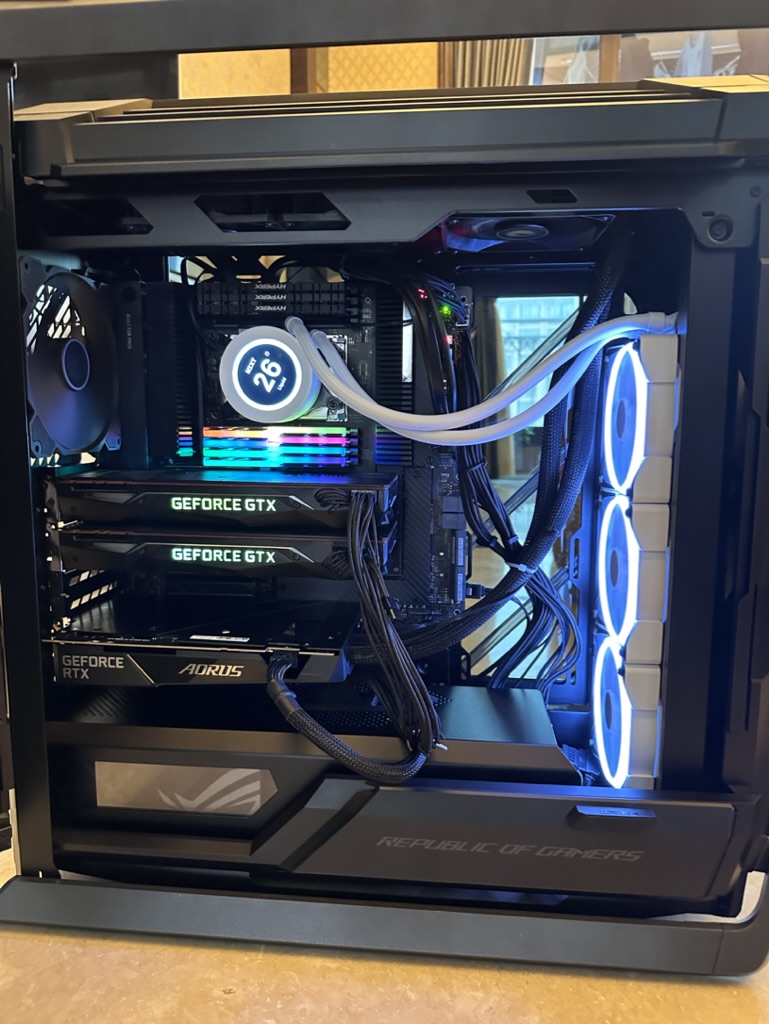
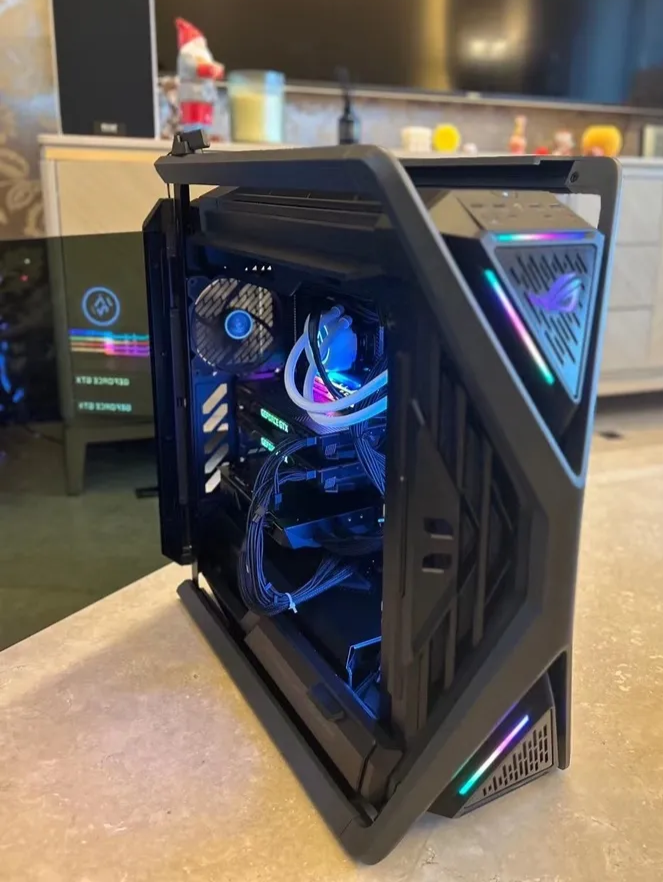
The overall result after installation looks great; the RGB lighting combined with the liquid‑cooling system is very striking. Because the case space is limited, the routing of every cable needs to be planned in advance to ensure it does not interfere with other components. Finally, I installed Ubuntu 22.04 LTS.
Hyper M.2 x16扩展卡
A major advantage of AMD CPUs is the abundance of PCIe lanes; the Ryzen Threadripper PRO 5975WX processor provides 128 PCIe lanes (120 of which are available to the user). Even with four RTX 4090 GPUs running simultaneously, there are still 56 lanes left.
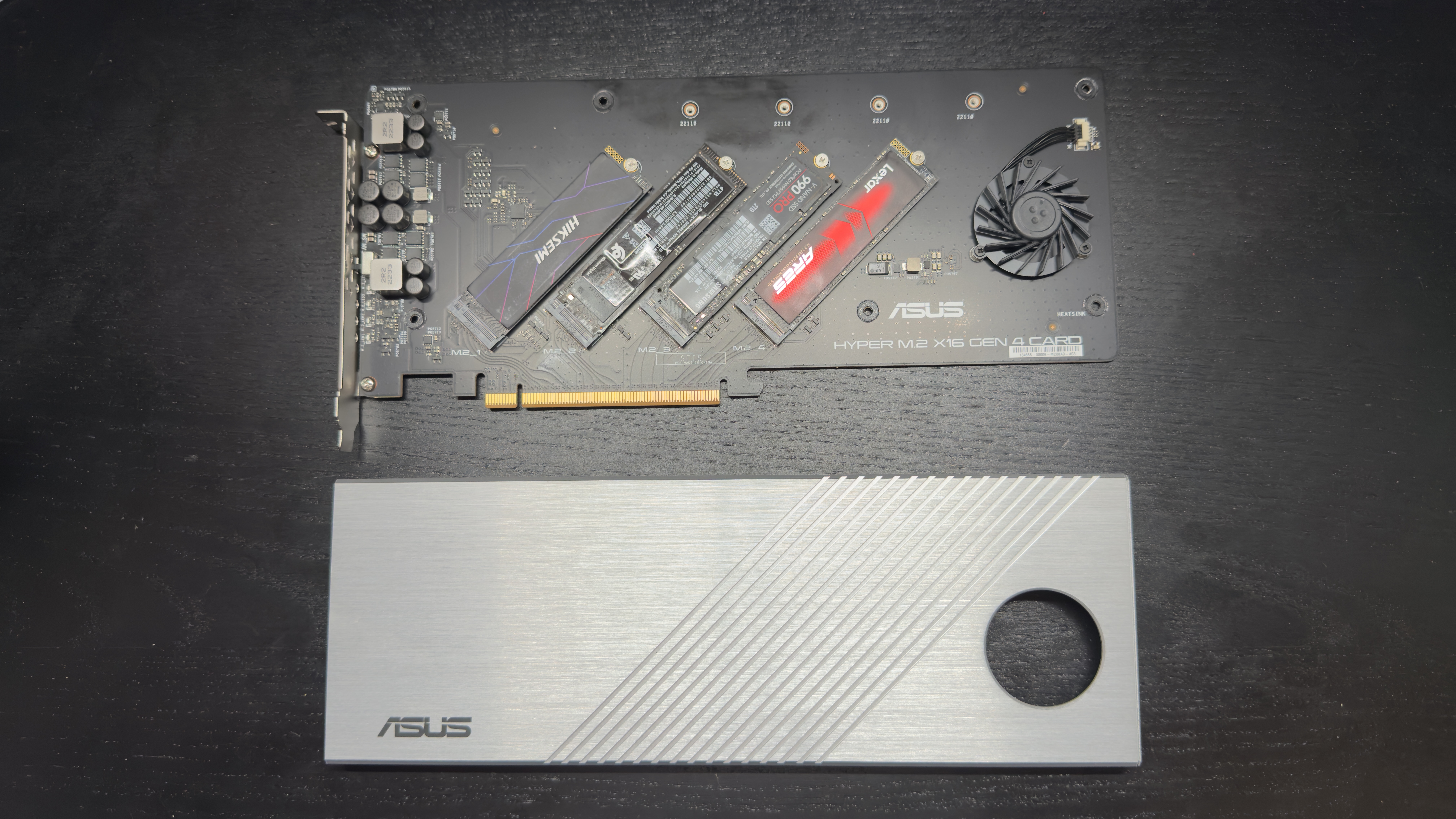
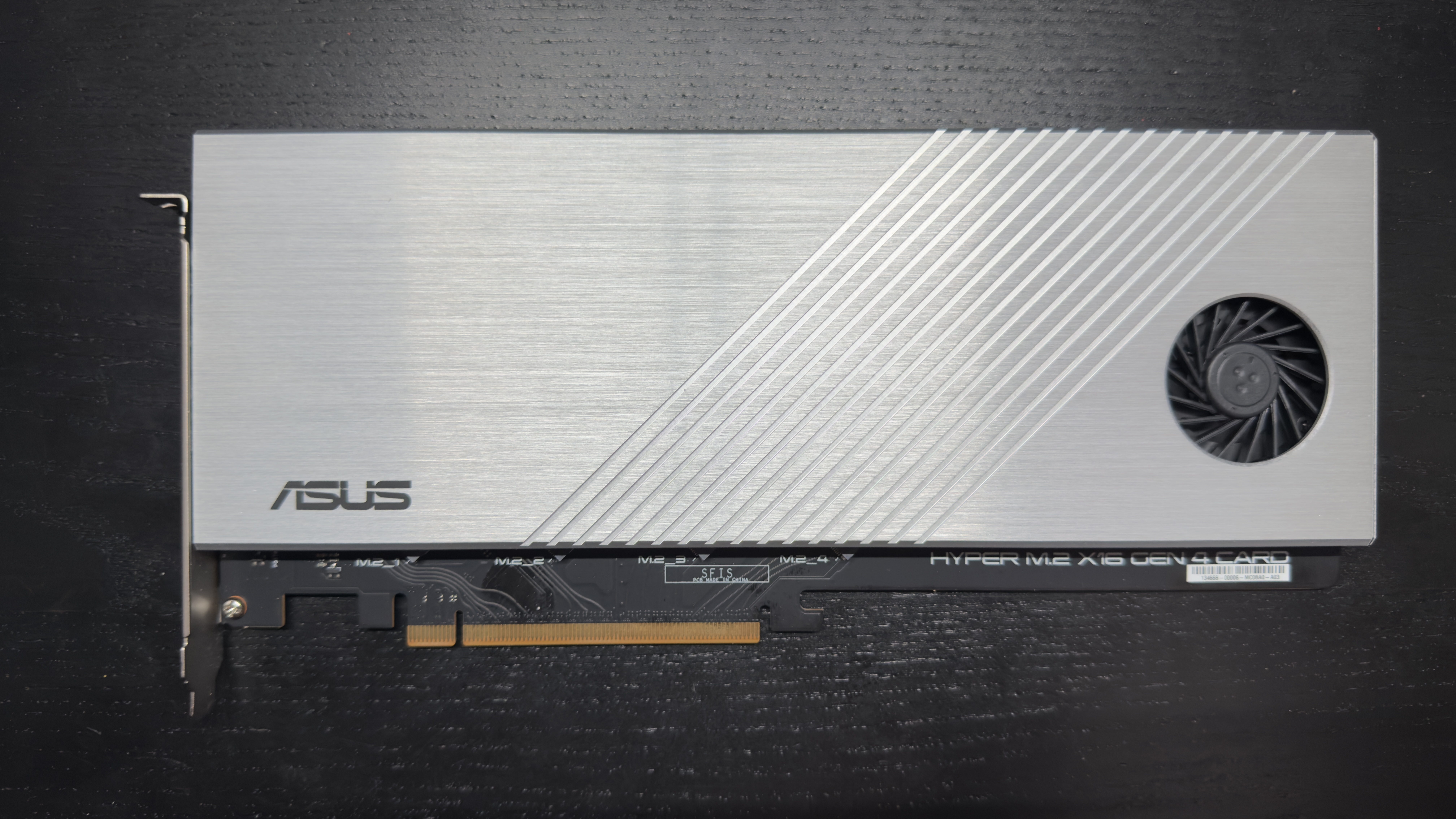
ASUS’s WRX80E motherboard offers a Hyper M.2 x16 expansion card, which comes with a large heatsink and an active cooling fan. By creating a RAID 0, you can achieve up to 32 GB/s disk access speed. My four M.2 drives:
lsblk -d -o NAME,SIZE,MODEL | grep nvme

# nvme0n1   3.7T HS-SSD-C4000 4096G
# nvme1n1   3.6T WD_BLACK SN850X 4000GB
# nvme2n1   1.8T Samsung SSD 990 PRO 2TB
# nvme3n1   3.7T Lexar SSD ARES 4TB
# nvme4n1 476.9G Samsung SSD 960 PRO 512GB
After inserting the expansion card into the motherboard, you need to set the corresponding PCIe slot to “PCIe RAID mode” in the BIOS under Onboard Devices Configuration.
btrfs RAID 0
The next step is to build a RAID 0. I first tried the BIOS’s RAIDXpert2 Configuration Utility; for disks of different sizes, the maximum RAID 0 size is only 8 TB, and the tool receives poor reviews. I then switched to btrfs’s native RAID support:
# Install btrfs tools
sudo apt update
sudo apt install btrfs-progs

# Create RAID 0 directly using btrfs
sudo mkfs.btrfs -d raid0 -m raid1 -L HOME \
  /dev/nvme0n1 /dev/nvme1n1 /dev/nvme2n1 /dev/nvme3n1

# Parameter explanation:
# -d raid0: Use RAID 0 for data
# -m raid1: Use RAID 1 for metadata (safer)

# Mount (only need to mount one device, btrfs will automatically recognize other members)
sudo mkdir -p /home
sudo mount -o noatime,nodiratime,compress=zstd:1,space_cache=v2,\
ssd,discard=async,commit=120 /dev/nvme0n1 /home

# Mount options explanation:
# compress=zstd:1 - Fast compression, improves effective bandwidth
# space_cache=v2 - Improved space cache
# ssd - SSD optimization
# discard=async - Asynchronous TRIM
# commit=120 - Extend commit interval to 120 seconds
btrfs’s dynamic striping mechanism automatically distributes stripes across available devices, allowing the full 14 TB to be used: the first 8 TB run at four‑disk speed, the remaining 6 TB at three‑disk speed.
# Check device usage
sudo btrfs filesystem show /home

# Label: HOME  uuid: 561ca42e-0811-47f7-900c-d594b5b22033
#         Total devices 4 FS bytes used 144.00KiB
#         devid    1 size 3.73TiB used 1.00GiB path /dev/nvme0n1
#         devid    2 size 3.64TiB used 1.00GiB path /dev/nvme1n1
#         devid    3 size 1.82TiB used 2.01GiB path /dev/nvme2n1
#         devid    4 size 3.73TiB used 2.01GiB path /dev/nvme3n1

sudo btrfs device stats /home

# View detailed space allocation
sudo btrfs filesystem df /home
Add a line to /etc/fstab to automatically mount the RAID volume:
UUID=$(sudo blkid -s UUID -o value /dev/nvme0n1)
MOUNT_OPTIONS="noatime,nodiratime,compress=zstd:1,space_cache=v2,ssd,discard=async,commit=120"
echo "UUID=$UUID /home btrfs $MOUNT_OPTIONS 0 0" | sudo tee -a /etc/fstab
Testing btrfs RAID 0 performance with fio shows that CoW has a large impact on read/write speed; after disabling CoW with sudo chattr +C the results are: sequential read 28.6 GB/s, sequential write 16.5 GB/s, random read 567 K IOPS, random write 61 K IOPS.
sudo apt install fio

sudo mkdir -p /home/test/
sudo chattr +C /home/test/

sudo fio --name=test --filename=/home/test/file \
  --size=50G --direct=1 --rw=read --bs=1M \
  --iodepth=256 --numjobs=4  --runtime=60 --time_based \
  --group_reporting --ioengine=libaio

sudo fio --name=test --filename=/home/test/file \
  --size=50G --direct=1 --rw=write --bs=1M \
  --iodepth=256 --numjobs=4 --runtime=60 --time_based \
  --group_reporting --ioengine=libaio

sudo fio --name=test --filename=/home/test/file \
  --size=5G --direct=1 --rw=randread --bs=4K \
  --iodepth=256 --numjobs=4  --runtime=60 --time_based \
  --group_reporting --ioengine=libaio

sudo fio --name=test --filename=/home/test/file \
  --size=5G --direct=1 --rw=randwrite --bs=4K \
  --iodepth=256 --numjobs=4  --runtime=60 --time_based \
  --group_reporting --ioengine=libaio