Online preview of training data shards and HuggingFace datasets
[2025 Dec update: added Zenodo data online preview feature]
Recently I switched from WebDataset to LitData. LitData is developed by the same company behind PyTorch Lightning; I tried it when it was first released, but gave up due to many bugs. After more than a year of iteration, it has become very powerful. Moreover, it is decoupled from the PyTorch Lightning framework and can be used independently in any training/inference pipeline. It supports reading multiple shard formats: LitData, HF Parquet, MosaicML, and can also stream directly from raw data via StreamingRawDataset.
Compared with WebDataset’s tar shard files, LitData’s drawback is that the packaged .bin shards (sometimes still zstd‑compressed) have poor readability and cannot be inspected directly like tar files. These .bin files have a complete internal structure but no filenames or directory concepts, and there is no ready‑made CLI to glance at the data. When debugging data preprocessing, tracking label errors, or inspecting the actual image/audio of a sample, this “invisible” feeling severely hurts efficiency.
I open‑sourced a tool Dataset Inspector, a desktop application specifically for viewing training data shards.
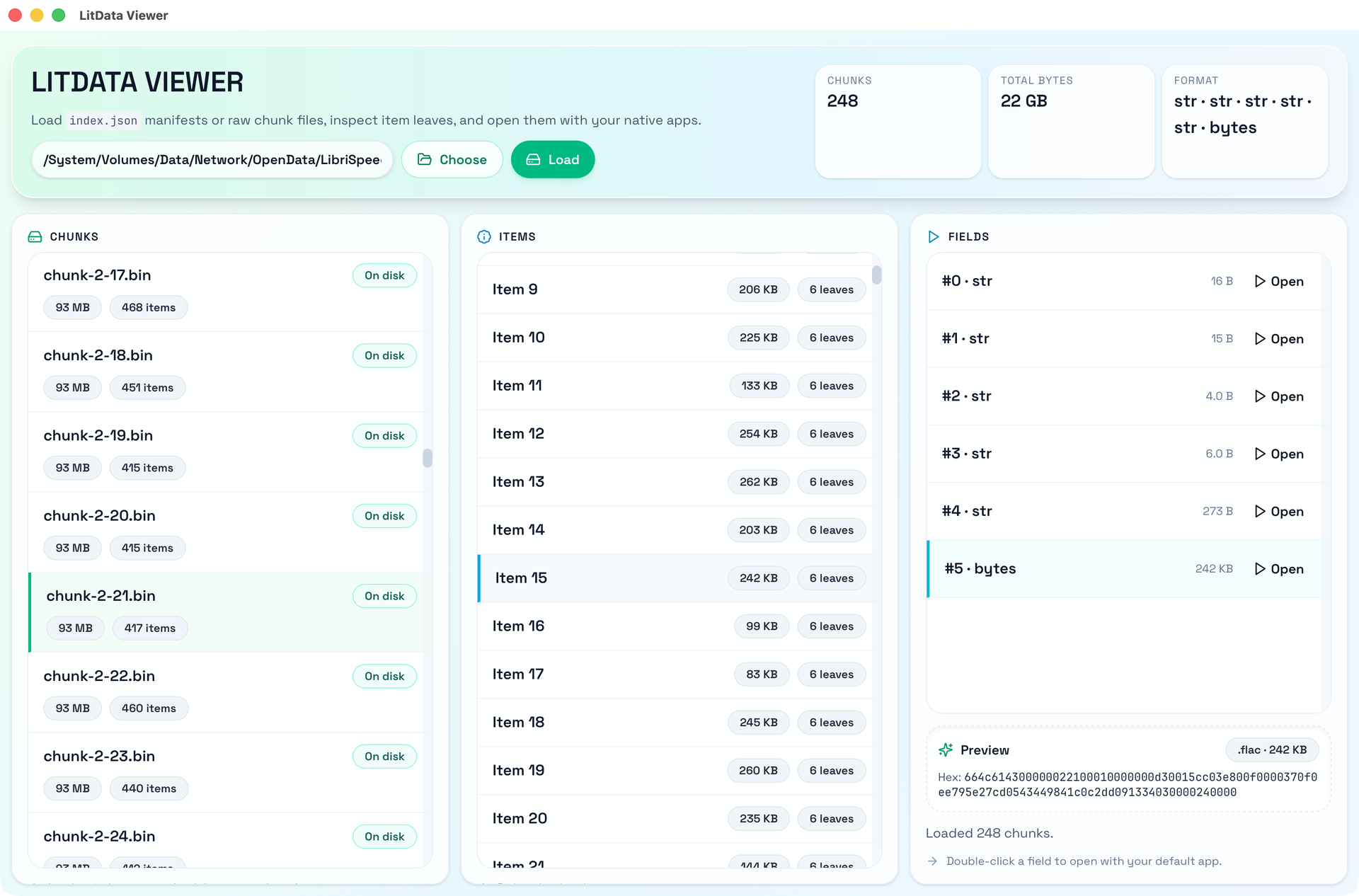
LitData shard structure
Below we introduce the LitData shard format and how Inspector reads this data.
index.json file
index.json is the core configuration file of LitData, and it contains:
Data configuration (config)
- compression: compression method, usually null or zstd
- chunk_size: number of records per shard file
- chunk_bytes: target size of each shard file
- data_format: array describing which fields each record has
- data_spec: description of field meanings
Chunk list (chunks), each shard contains:
- filename: file name (e.g.,
0.bin) - chunk_bytes: file size
- chunk_size: number of records contained
- dim: tensor dimension information (used in some scenarios)
- filename: file name (e.g.,
.bin file internal structure
An uncompressed LitData shard file has the following structure:
u32 num_items                           // number of records N
u32 offsets[num_items + 1]              // N+1 position entries

// each record i (0 to N-1):
u32 field_sizes[i]                      // size of each field
u8  field_0[field_sizes[0]]
u8  field_1[field_sizes[1]]
...
u8  field_k[field_sizes[k-1]]
If the file is compressed with zstd, the suffix is .bin.zst and the entire file is compressed. It cannot be jumped to directly, so Inspector’s approach is: when the file is opened for the first time, decompress the whole file into memory and keep it in a cache. All subsequent operations are performed in memory; if the file is not compressed, it can jump to any position without loading the whole file into memory.
Determining file type and opening method
To allow Inspector to directly open data inside .bin files, e.g., opening a .wav file with Adobe Audition, I added automatic file type detection and open with the system’s default program based on the detected type.
File type detection
First, determine how many fields each record contains from data_format, then infer the file extension:
- Common types are directly mapped:
png → .png,jpeg/jpg → .jpg,str/string → .txt, etc. - Complex format parsing: take the last segment of
some.custom.ext - Inspect file content features: when data_format is
bytesorbin, determine the actual type by checking file header signatures (e.g., RIFF, WAVE, ID3, fLaC) or by text parsing
Open with default program
After selecting a field, you can view its content in the preview area; double‑clicking the field automatically creates a temporary file saved in /tmp and opens the field’s data with the system’s default application.
My open‑source project: github.com/binbinsh/dataset-inspector